Using Google AI Studio
Get a free Gemini API key in under 2 minutes — no credit card required. Google's generous free tier makes it one of the best ways to get started.
1. What is Google AI Studio?
Google AI Studio is Google's free, browser-based tool for prototyping and testing with their Gemini AI models. It provides:
- Generous free tier — 15 requests per minute on Gemini Flash models at no cost
- No credit card required — just sign in with your Google account
- High-quality models — access to Gemini 2.5 Flash, Gemini 2.5 Pro, and more
- Vision support — Gemini models can analyze book covers and title pages
- Browser-compatible — Gemini API supports direct browser calls (CORS-friendly)
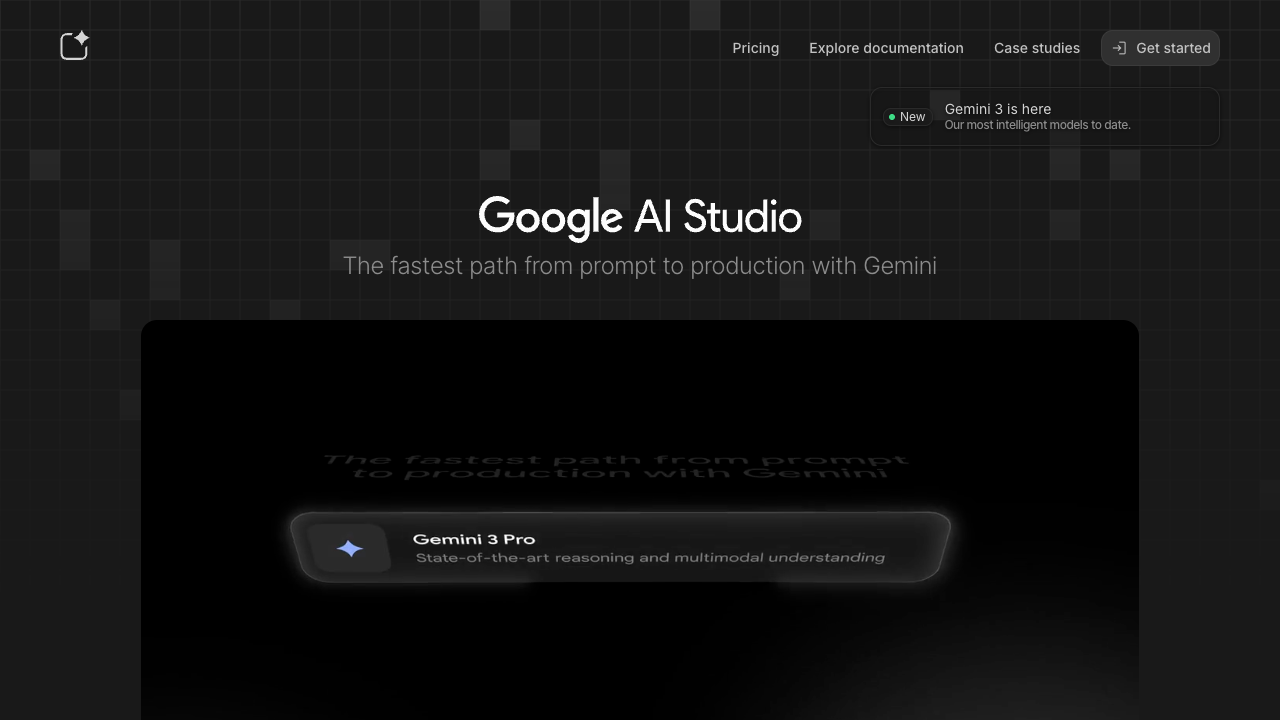
Google AI Studio welcome page
2. Sign In with Google
Google AI Studio uses your existing Google account — no separate sign-up required:
- Visit aistudio.google.com
- Click "Get started" (or "Sign in") in the top-right corner
- Sign in with your Google account
- Accept the Terms of Service if prompted
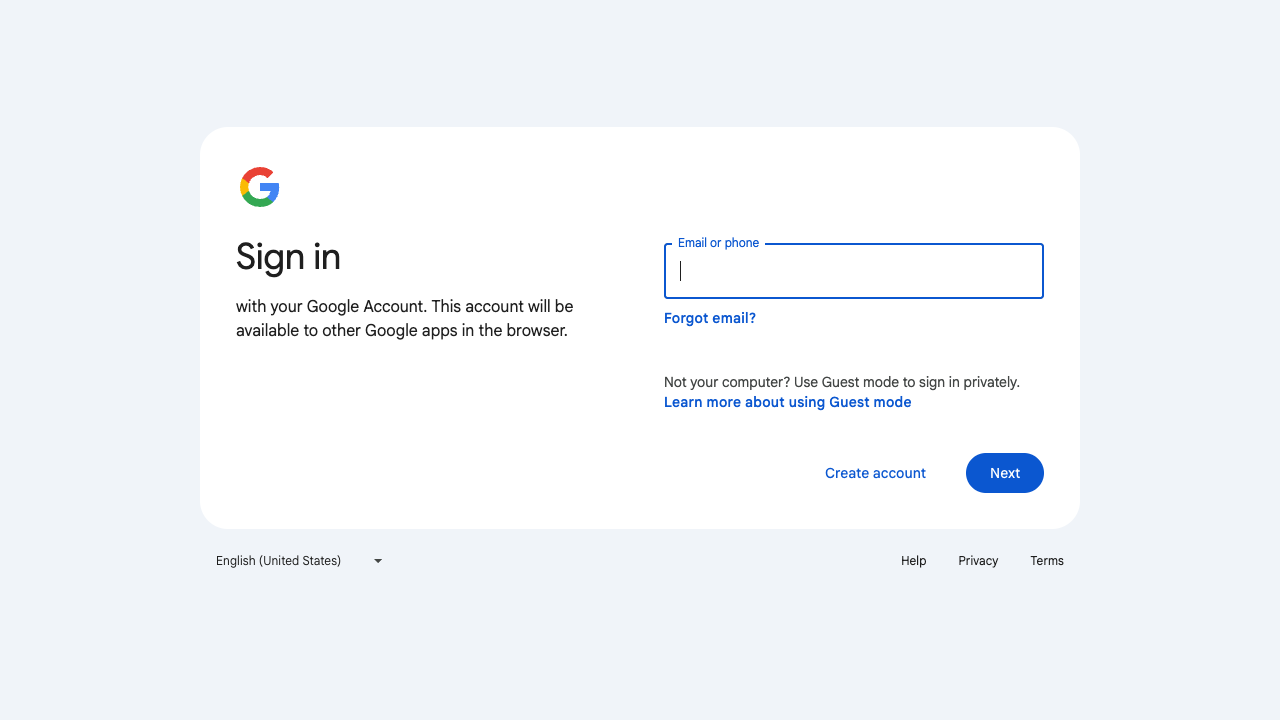
Google sign-in page — use any Google account
Tip: Any Google account works (personal Gmail, Google Workspace, etc.). If you don't have a Google account, you can create one for free.
3. Get Your API Key
Once signed in, getting your API key takes just a few clicks:
- Navigate to the API Keys page (or click "Get API key" in the left sidebar)
- Click "Create API key"
- Select an existing Google Cloud project, or let AI Studio create one for you
- Copy the key — it starts with
AIza...
Important: Save your API key somewhere safe. You can always view and manage your keys at aistudio.google.com/apikey, but it's good practice to copy it immediately.
Quick link:
Go directly to aistudio.google.com/apikey to create or manage your API keys.
4. Free Tier & Pricing
Google offers a generous free tier that's more than enough for cataloging work:
| Tier | Rate Limit | Daily Limit | Cost |
|---|---|---|---|
| Free (Gemini Flash) | 15 RPM | 1,500 requests/day | $0 |
| Free (Gemini Pro) | 2 RPM | 50 requests/day | $0 |
| Pay-as-you-go | Higher limits | Unlimited | Per-token pricing |
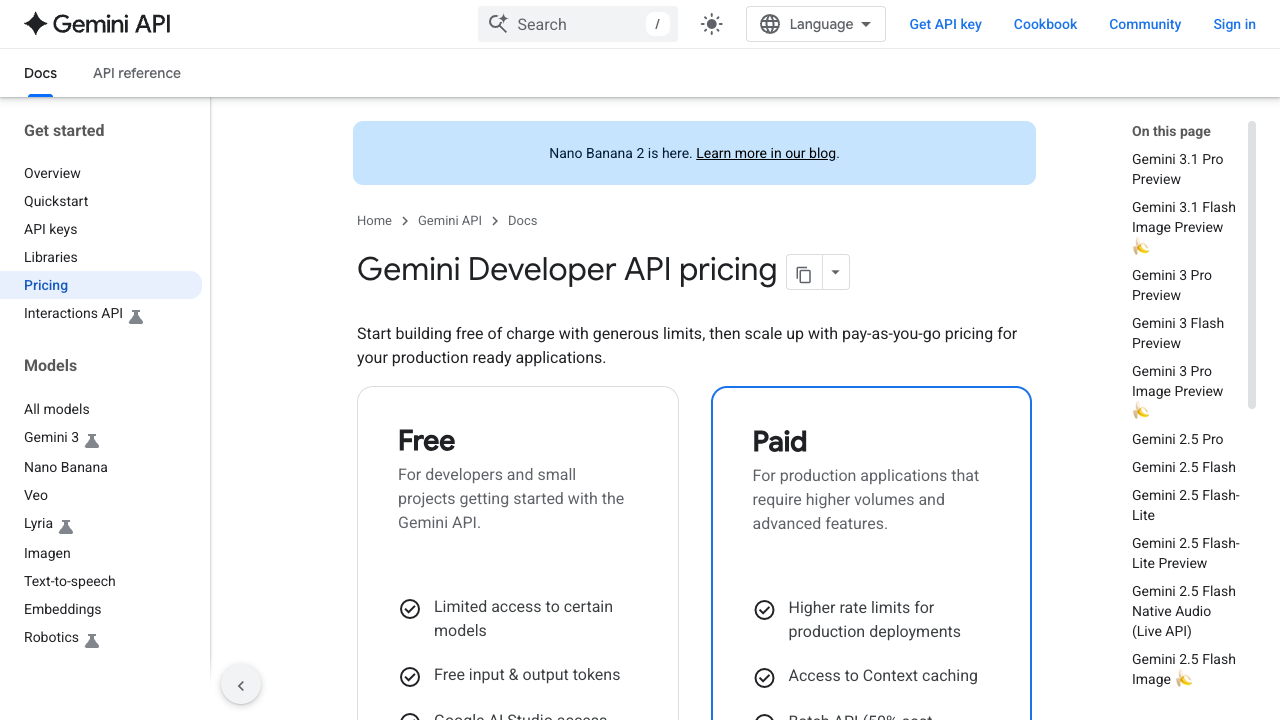
Gemini API pricing — the free tier is sufficient for most cataloging workflows
For catalogers: The free tier at 15 RPM (Gemini Flash) is more than enough for typical cataloging sessions. Even heavy usage rarely exceeds a few dozen requests per session.
5. Configure the Cataloging Assistant
With your API key ready, set up the Cataloging Assistant:
- Open the Cataloging Assistant
- Go to Settings (gear icon in the navigation)
- Under Cloud Providers, select "Google" from the Provider dropdown
- The model list will load automatically — select a model (we recommend Gemini 2.5 Flash to start)
- Scroll down to API Keys and paste your Google API key
- Click "Test Connection" to verify everything works
Settings Summary
6. Recommended Models
Google offers several Gemini models. Here are the best choices for cataloging:
| Model | Model ID | Best For |
|---|---|---|
| Gemini 2.5 Flash | gemini-2.5-flash-preview-05-20 | Best balance of speed, quality, and cost. Recommended for most cataloging. |
| Gemini 2.5 Pro | gemini-2.5-pro-preview-05-06 | Highest quality. Best for complex or ambiguous subject analysis. |
| Gemini 2.5 Flash Lite | gemini-2.5-flash-lite-preview-06-17 | Fastest and cheapest. Good for quick cataloging of straightforward materials. |
Vision support: All Gemini models support image analysis. You can upload book covers, title pages, or tables of contents for the AI to analyze alongside the text metadata.
7. Tips & Troubleshooting
Tips for Best Results
- Start with Gemini 2.5 Flash — fast, accurate, and free
- Upload images when available — Gemini excels at extracting subject information from covers and title pages
- Include abstracts and TOCs — more bibliographic context leads to better LCSH suggestions
- Use Gemini 2.5 Pro for edge cases — when Flash struggles with ambiguous subjects, Pro often finds the right heading
Common Issues
"API key not valid" error
Make sure you copied the full key (starts with AIza). Check that there are no extra spaces before or after the key.
"Quota exceeded" error
You've hit the free tier rate limit. Wait a minute and try again, or switch to a Flash model which has higher free-tier limits.
"Model not found" error
Google occasionally updates model IDs. Use the model picker in Settings to select from the latest available models.
Ready to start cataloging? Launch the Cataloging Assistant
Or explore other provider guides: OpenRouter (400+ models)