Using OpenRouter
Access 400+ AI models through a single API — including free models with no credit card required.
1. What is OpenRouter?
OpenRouter is an AI model aggregator that provides access to 400+ models from providers like Meta, Google, Mistral, and others through a single, unified API. It is one of the easiest ways to get started with the Cataloging Assistant because:
- Free tier available — Several high-quality models are available at no cost
- No credit card required — Sign up and start using free models immediately
- Single API key — One key gives you access to all available models
- Pay-as-you-go — When you're ready, add credits for access to premium models
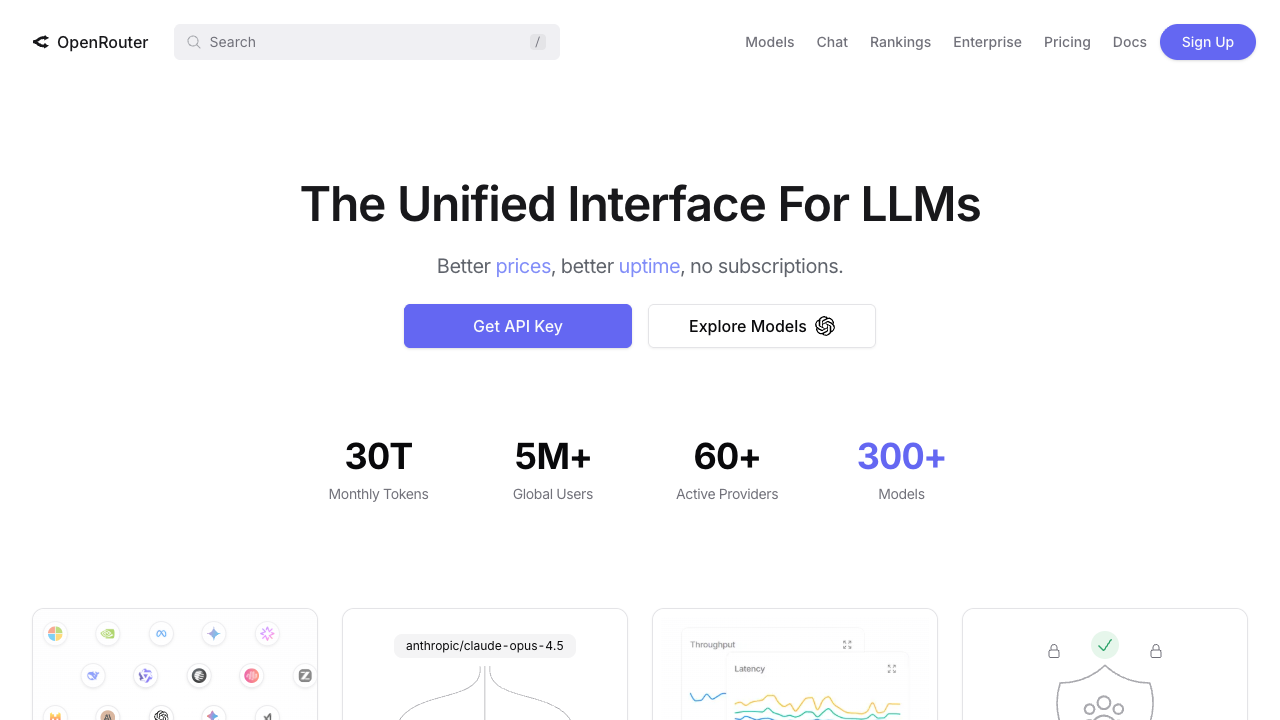
OpenRouter homepage
2. Create an Account
Creating an OpenRouter account is quick and free:
- Visit openrouter.ai
- Click "Sign In" in the top-right corner
- Choose your sign-in method: Google, GitHub, or email
- Complete the sign-up process and verify your email if prompted
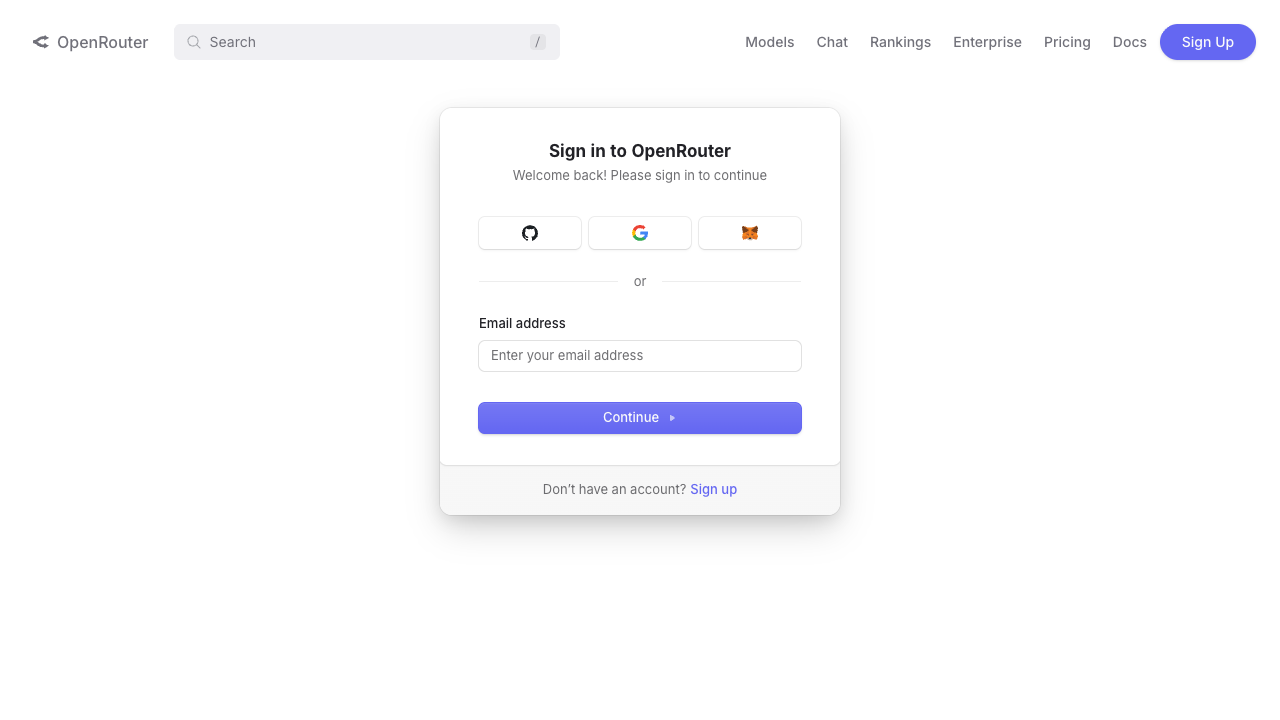
OpenRouter sign-in page — Google, GitHub, or email
3. Get Your API Key
Once signed in, generate an API key:
- Click your avatar in the top-right corner and go to Settings
- Navigate to the API Keys section
- Click "Create Key"
- Give your key a name (e.g., "LCSH Cataloging")
- Copy the key immediately — it will only be shown once
Important: Your API key starts with sk-or-v1-. Copy and save it somewhere safe — you won't be able to see it again after leaving the page.
4. Find Free Models
OpenRouter offers several free models that work well for LCSH cataloging:
| Model | Model ID | Notes |
|---|---|---|
| DeepSeek R1 (free) | deepseek/deepseek-r1:free | Strong reasoning, good for subject analysis |
| Gemini 2.5 Flash (free) | google/gemini-2.5-flash-preview:free | Fast, supports vision (book cover analysis) |
| Llama 3.3 70B (free) | meta-llama/llama-3.3-70b-instruct:free | General-purpose, reliable for cataloging |
To browse all free models, visit the OpenRouter models page and filter by "free".
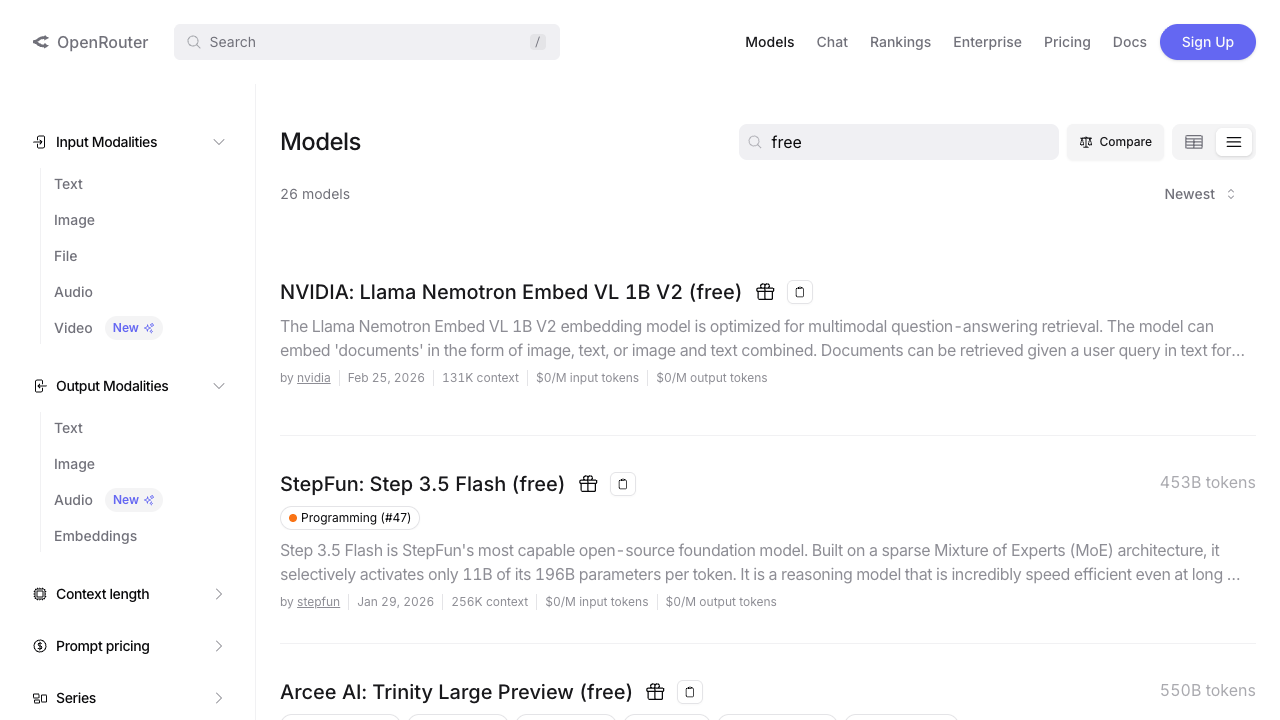
OpenRouter models page — filter by "free" to find no-cost options
5. Configure the Cataloging Assistant
With your API key ready, configure the Cataloging Assistant:
- Open the Cataloging Assistant
- Go to Settings (gear icon in the navigation)
- Under Cloud Providers, select "OpenRouter" from the Provider dropdown
- The model list will load automatically — use the search box to find your preferred model
- Scroll down to API Keys and paste your OpenRouter API key
- Click "Test Connection" to verify everything works
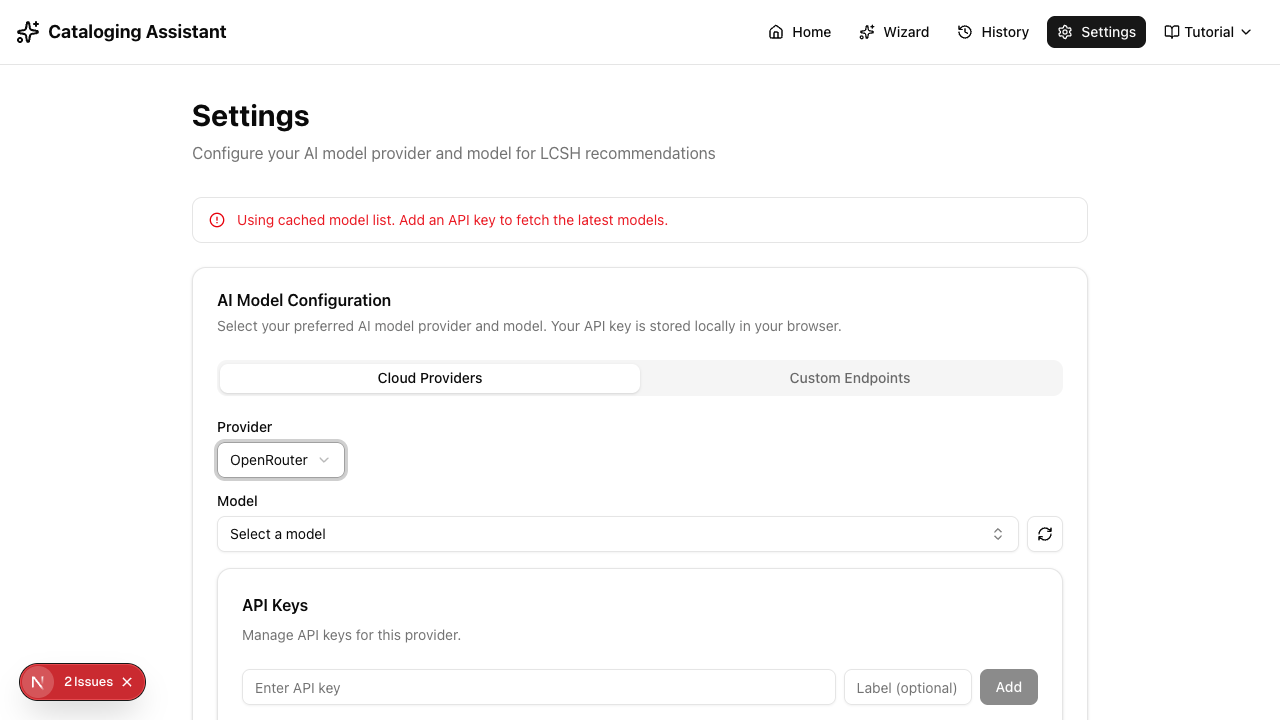
Cataloging Assistant settings — OpenRouter selected with model picker
6. Using Free Model IDs
OpenRouter uses a naming convention for free model variants:
Free models have the :free suffix appended to their model ID. For example:
meta-llama/llama-3.3-70b-instruct:freedeepseek/deepseek-r1:freegoogle/gemini-2.5-flash-preview:free
When you select a model from the model picker in the Cataloging Assistant, it will automatically include the correct model ID. If entering a model ID manually, make sure to include the :free suffix to use the free version.
7. Rate Limits & Tips
Keep these limits and tips in mind when using OpenRouter:
| Tier | Rate Limit | Cost |
|---|---|---|
| Free (no credits) | ~50 requests/day on free models | $0 |
| With credits ($10+) | ~1000 requests/day | Pay-as-you-go |
Tips for Best Results
- Start with DeepSeek R1 (free) — it has strong reasoning capabilities that work well for subject analysis and LCSH selection
- Use Gemini 2.5 Flash (free) for images — if you need to analyze book covers or title pages, this model supports vision
- Monitor your usage — check your usage on the Activity page
- Add credits for higher limits — even $5 in credits significantly increases your rate limits and unlocks paid models
- Try different models — different models may perform better for different types of materials (fiction vs. non-fiction, technical vs. humanities)
Ready to start cataloging? Launch the Cataloging Assistant
Or explore other provider guides: Google AI Studio (Gemini)